
What are custom fields?
Custom fields allow you to collect information that isn’t already standard on a referrer record. For example, you might want to collect other sales information, legal details, agreement information etc. You can add in the fields you want to see, whenever you want to start collecting that information.
Where does the data go?
The custom fields you create will appear on the referrer overview tab. It can be included in your referrer table for filtering your referrers, data exports and on the GET API.
Creating custom referrer fields
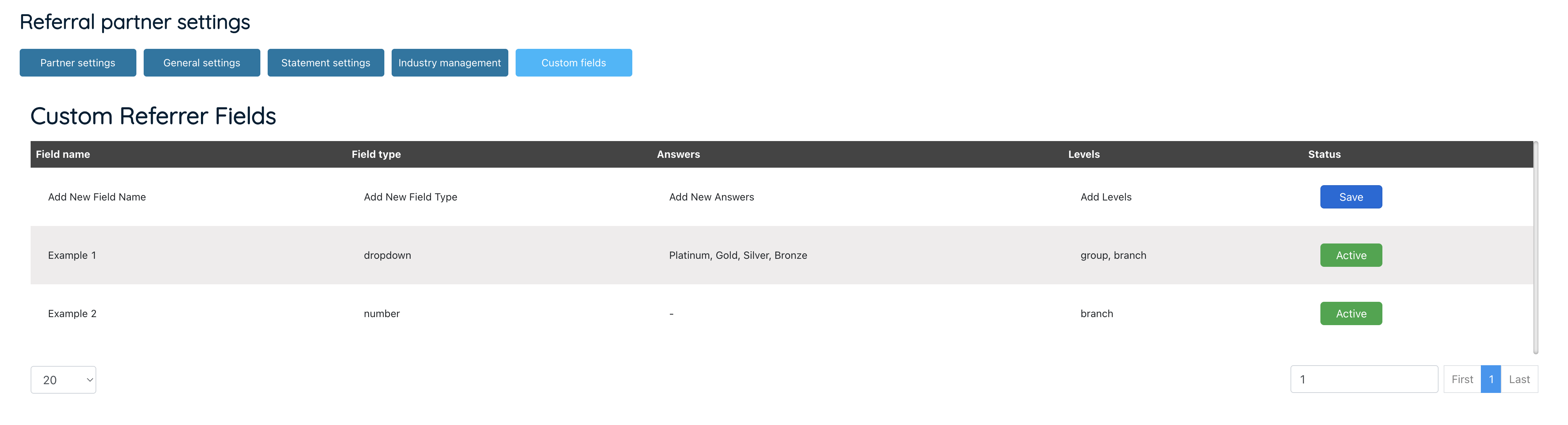
Navigate to your Referrer Table > Settings > Custom fields tab.
Step 1: Create your fields
- In the first section, add a field by setting the name of the field
- Set if it is a text field, number field or dropdown.
- If it is a dropdown you can add your own values that you’ll be able to select on the job record (e.g. Clay,Sandy,Silt…). Enter each value followed by a comma.
- Set which referrer levels that field should be visible for (Referrer Plus) so that it only appears on the level of referrer you need it for.
To edit an existing field, edit the row and then press the “Update” button at the top of the section. Edit one row at a time, press update and then edit the next row.
Step 2: Create sections to set how the custom fields should display
Once you’ve created the fields you want to set up, you can set a structure for how they should appear on the referrer record. The custom sections will appear on the overview tab below the main overview data.
You can create one section or if you have lots of fields you can add them into different sections to make it easier to find the data you need.
- Press “Add section”
- Add a name for your section
- Set if you want your fields to be shown in 1, 2 or 3 columns
- Set the order that the sections should appear in (the sections will appear on the job timeline under the property details section and add in the order you have set here)
- Press add row and select the field you want to display there
- Add as many rows as you need and press save.
If you deactivate a field, it will automatically be removed from the layout section for you.

Step 3: Use your new fields
On each referrer record, you will see your new fields. Any added/removed in the settings will immediately add/remove from all referrer records.
Remember – the field will only show for the levels you select (Referrer Plus).

Referrer table columns
You can add custom fields into your referral partner table to filter your referrers by.
Click the filter icon above the table, and select custom fields at the bottom of the pop up.
Select a field and press the green ‘+’ icon and set an order.
Press save and refresh your referral partner table to see the changes.


Exporting custom fields
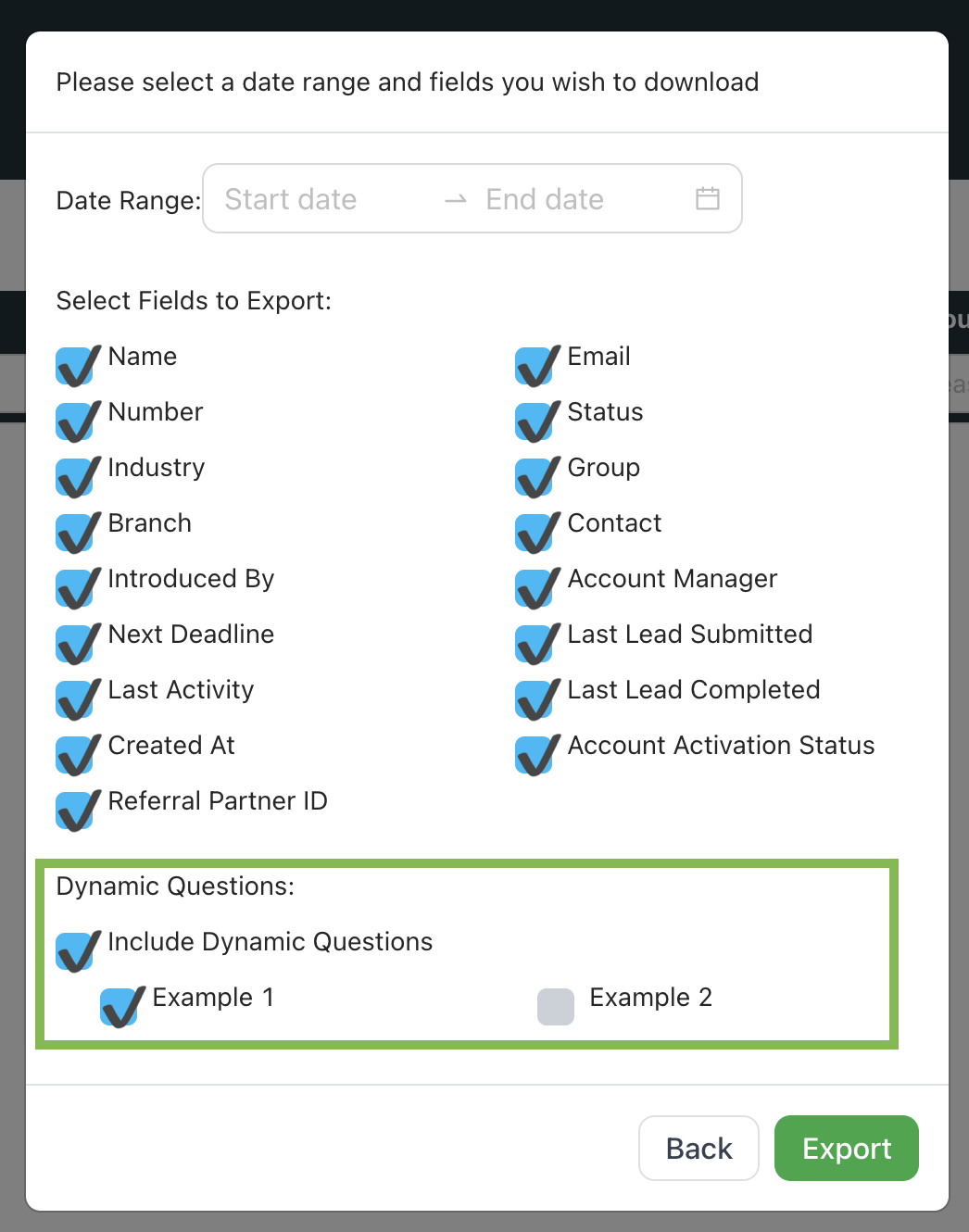
When exporting referral partners, you are asked which fields you want to export.
Select dynamic questions – then select which fields you’d like to include in the exported data.
Any custom fields will also be included on the GET API response.