

What are the Artificial Intelligence (AI) settings for?
Under Settings > AI Settings, you are able to view how many tokens you have available on your plan and how many have been used. You can also upload a document about your firm outlining details about your company and services and control which data points are sent to the AI model for creating content.
The settings below are to support the start of a number of AI features that are being released to support your business.
AI settings – token usage
This page allows you to see your token allowance and usage and control what alerts you receive.
Total Tokens – the total allowance on your plan (free allowances plus any extra allowances paid for)
Used Tokens – how many tokens you’ve used so far this month
Extra Used Tokens – how many tokens you’ve gone over your total token allowance
Remaining Tokens – how many tokens you have remaining in the current calendar month
Email notification – this controls if your super admin users receive an alert about token usage IF they have “AI token usage” ticked under their own notification preferences in the “your settings” tab of the notification preferences settings.
The system will send an alert for 25% used, 50% used, 75% used and 100% used. Once you reach 100% usage (you may go a few tokens over on your final request), you will not be able to send more emails / process more requests until your allowance is increased.

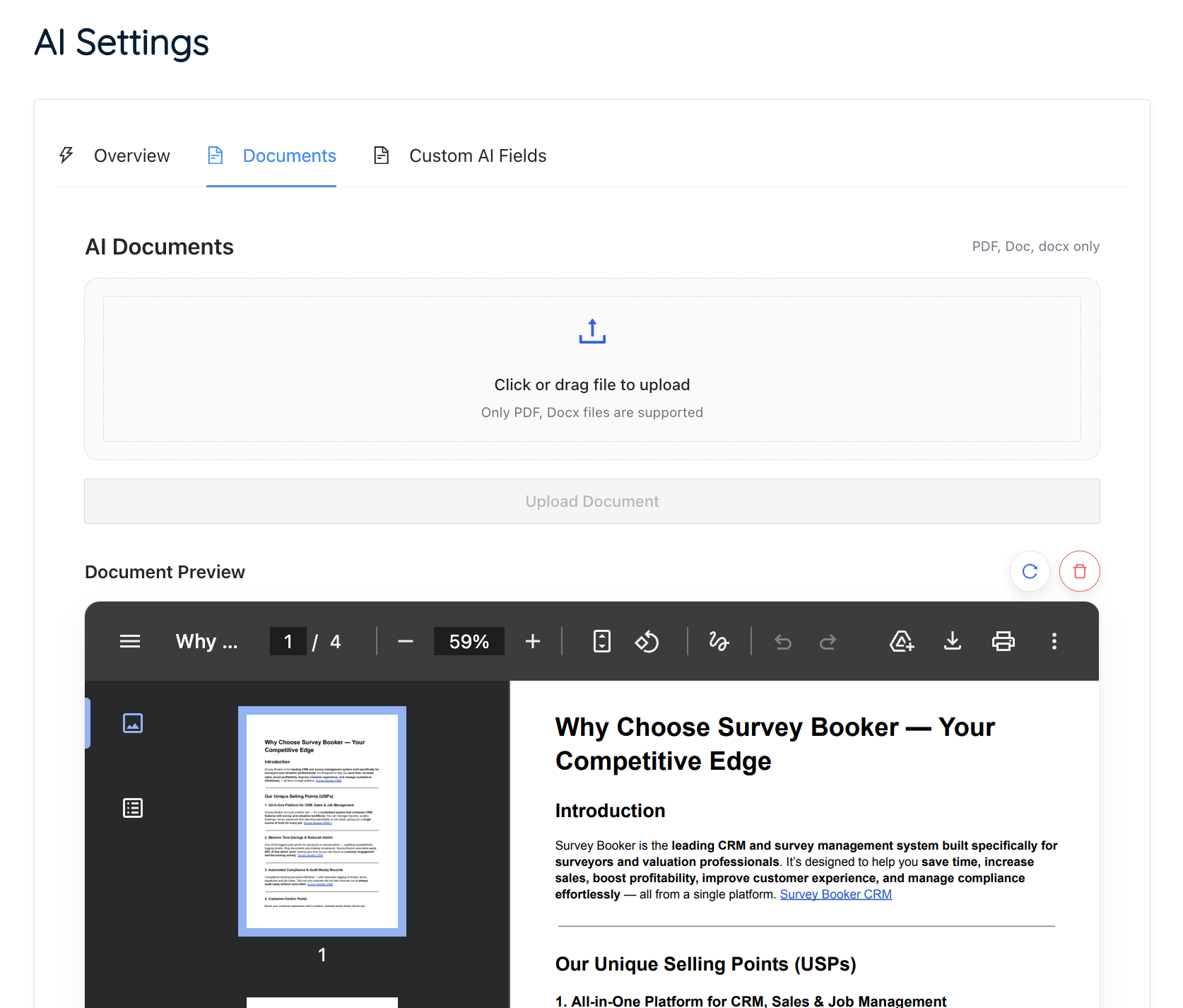
AI settings – document upload
In this section, you can upload a document that outlines the details about your company, USPs and services. It is important that you really think this document through – outline the general details about each service but also what makes your service unique. AI can only work with the information you give it, and customers can only understand why your service is worth more if you explain what you offer and the extra value they’ll receive.
Take time to create a clear, structured document with a section about your company and a section about each service that it can use information from to create correct responses.
AI settings – Custom AI Fields
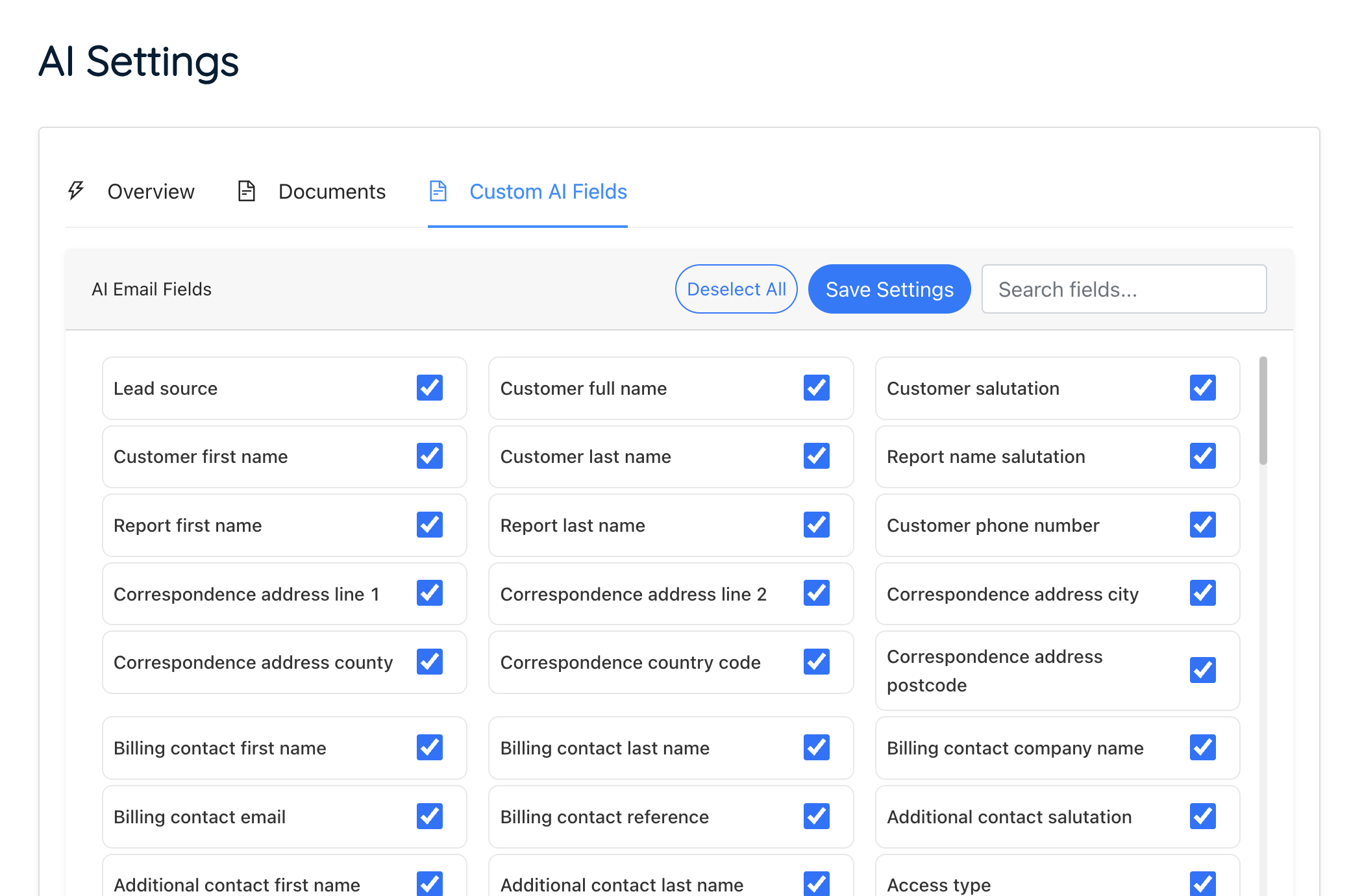
In this section, you choose which data points are included in any AI prompts – you have full control of your data and how it is used. This allows you to decide what customer data can and can’t be included in your AI prompts based on your own AI policies and preferences.
The data fields allow for:
- Email thread (the existing email thread to be included if sending a reply to add greater context)
- Customer data (such as names)
- Referrer data
- Job data
Alongside your supporting document from the section above, this helps the composer to generate a more customer and job-specific response vs a more generic email.
AI email composer
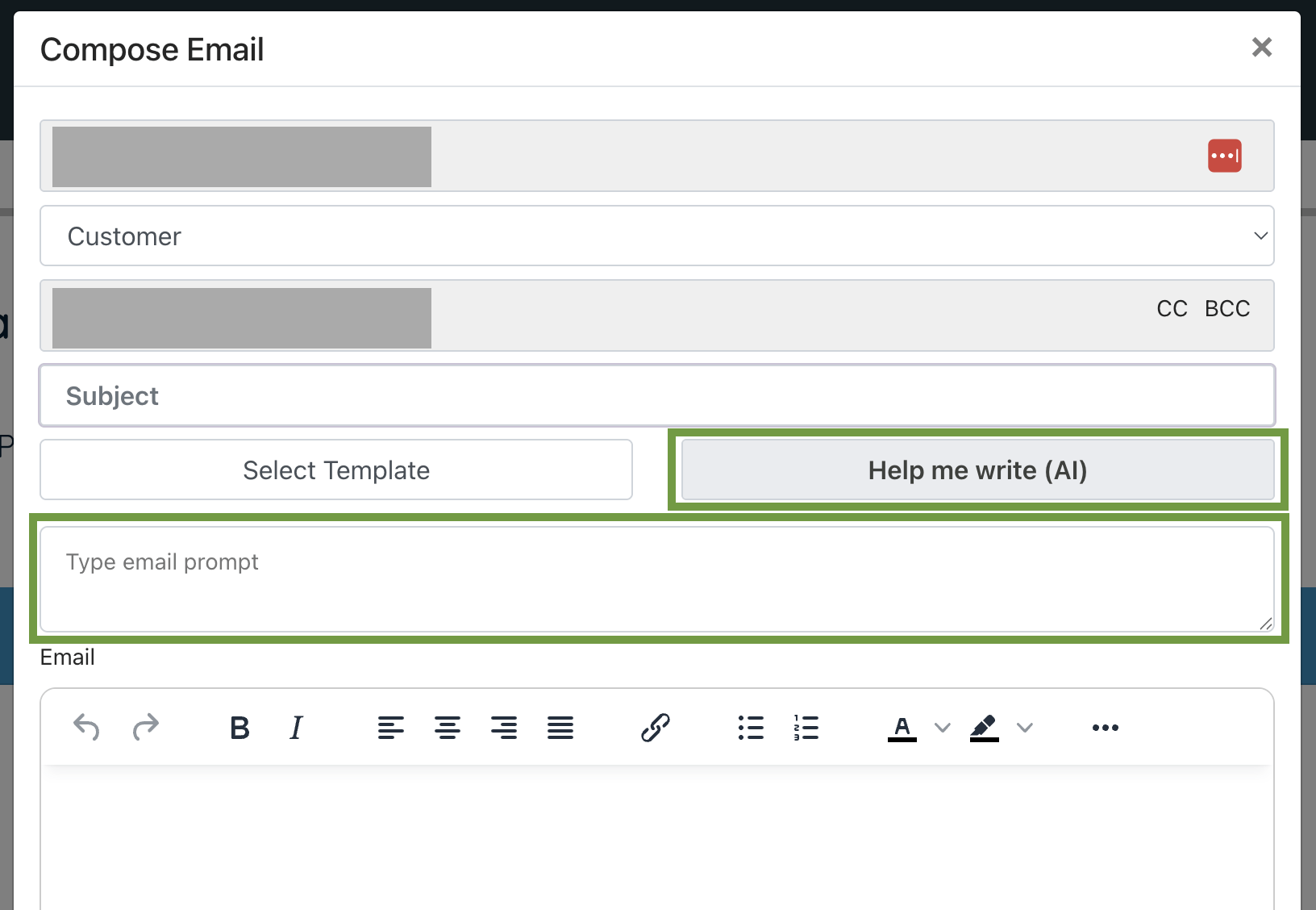
On any email tab, open the email composer.
Click “Use AI to generate email”.
In the box that appears, enter your prompt about what you want the model to write.
When ready, press “Help me write (AI)”.
The model will produce a response that appears in the body of the email. This can be edited before sending. If data isn’t available in the system, the body may include a placeholder for you to check before sending.
When replying to an email chain, you can also ask the AI to help write a response to the thread.
The composer will write emails based on the job data, your document in your AI settings and the email chain (if the email is part of a chain).
FAQs
Can I rely on AI responses?
Responsible use of AI means you should always review the response provided before you rely on its output. To support this, when sending emails, you will see the response provided in the email composer for you to review prior to pressing the “Send” button.
What impacts how many tokens are used in an email?
Emails are made up of input tokens and output tokens. The more data used in your prompt, the more input tokens are used. The longer the email reply produced (based on your prompt) the more tokens are used. To reduce token usage, limit the data in your prompt to only what is needed:
- Only activate data fields in the settings above that you really need to generate the types of emails you want.
- Keep your supporting document concise and to the point – list out all your USPs, services and more but keep it to what is needed – the longer the document, the longer your input.
- When sending emails – choose if you need to include data in your prompt or if you’re just looking for a more general email – removing data in the prompt reduces the number of tokens used.
What security protocols are in place?
We use a range of security protocols, guardrails and settings to ensure your data is kept secure.
- Data sent through the API is not used to train public models
- Guardrails – the prompt includes strict instructions to help ensure the AI does not produce hallucinated information or generate rude, violent, or inappropriate responses
- You have control over what data is and isn’t included in prompts
- Sensitive values (e.g. credentials) are removed from requests
What Large Language Model (LLM) is used?
We use the OpenAI API to support AI responses. This is the sub-processor you are agreeing to use when using our AI features.