

How to Clear Your Browser Cache and Hard Refresh
Browser caches are great, but sometimes they need a hard refresh to get the latest info
Understanding Your Browser Cache
When you browse any website, your browser is storing information in its local cache so that it doesn’t need to re-request resources from the website.
This is useful, but can come with downsides:
- Your browser may be storing outdated information
- More often than you’d expect, the browser cache can become corrupt, causing all sorts of issues to arise.
You generally should not need to worry about clearing your browser cache, but there are situations where this can be the exact fix you need to get your browser working properly. An example can be after a big feature release. Some features may appear not to work for you because your browser is storing outdated information, but once reset, everything works as expected.
Google Chrome / Edge / Brave
1. Open the Developer Console
There are a few ways to do this:
- Option 1: Control+Shift+I (Windows or Linux)
- Option 2: Option+Command+I (Mac)
- Option 3: Tools > Developer > Developer Tools…
- Option 4: Simply right-click anywhere on the page and click Inspect
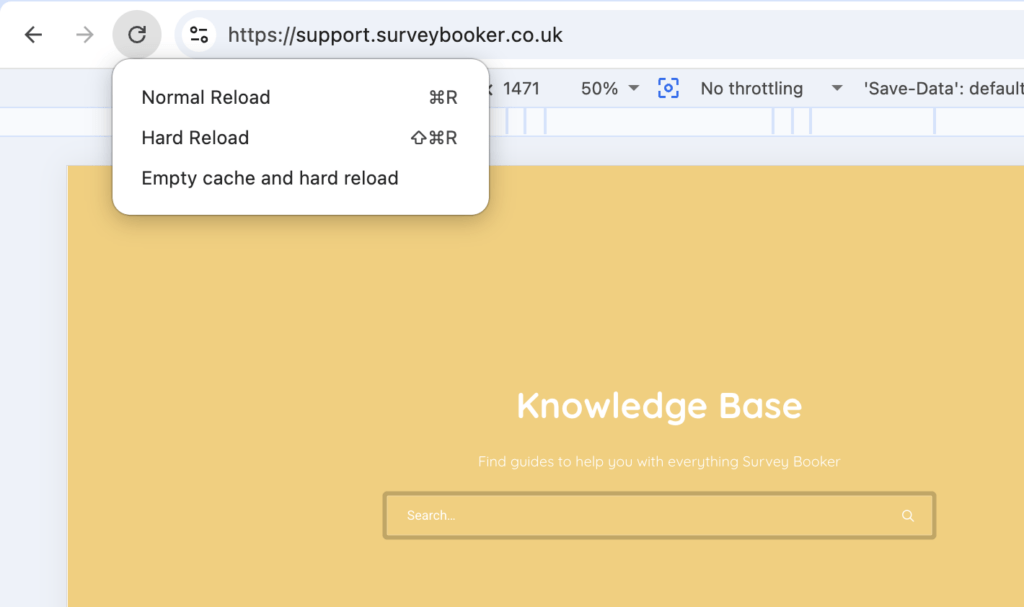
2. Press and hold the Refresh Icon
3. Click Empty Cache and Hard Reload from the dropdown
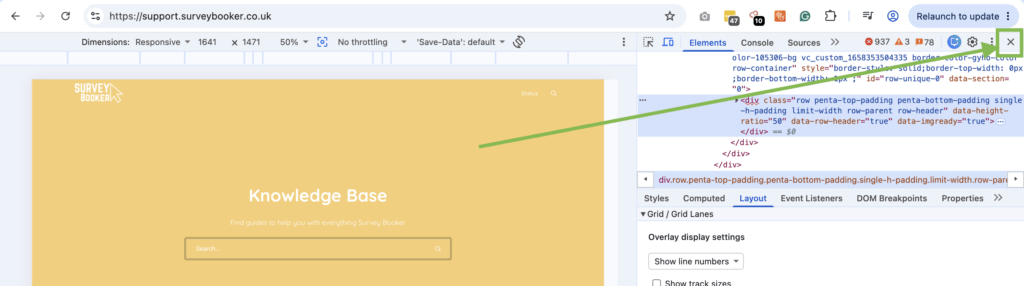
4. Close the Developer area that has appeared: using the small “x” at the top right of that box.
Firefox
1. Click the Menu button:

2. Click History
3. Click Clear Recent History
4. Make sure “Time range to clear” is set to “Everything”
5. Make sure “Cache” is checked (you can keep the other options unchecked)
6. Click OK
7. Reload the page
Safari
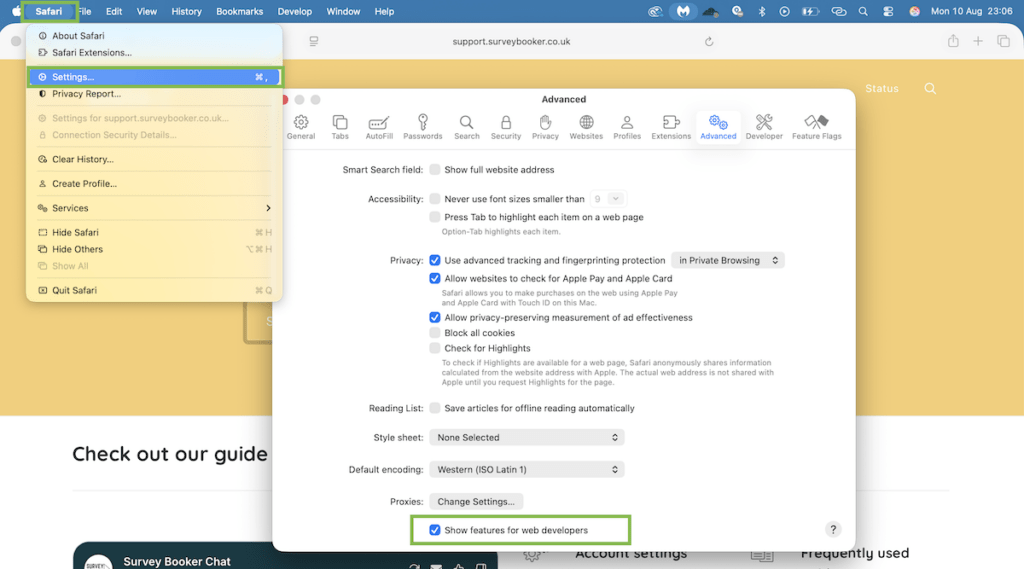
- Click Safari in the top menu
- Click Settings
- Go to Advanced
- Make sure that the Show features for web developers option is ticked
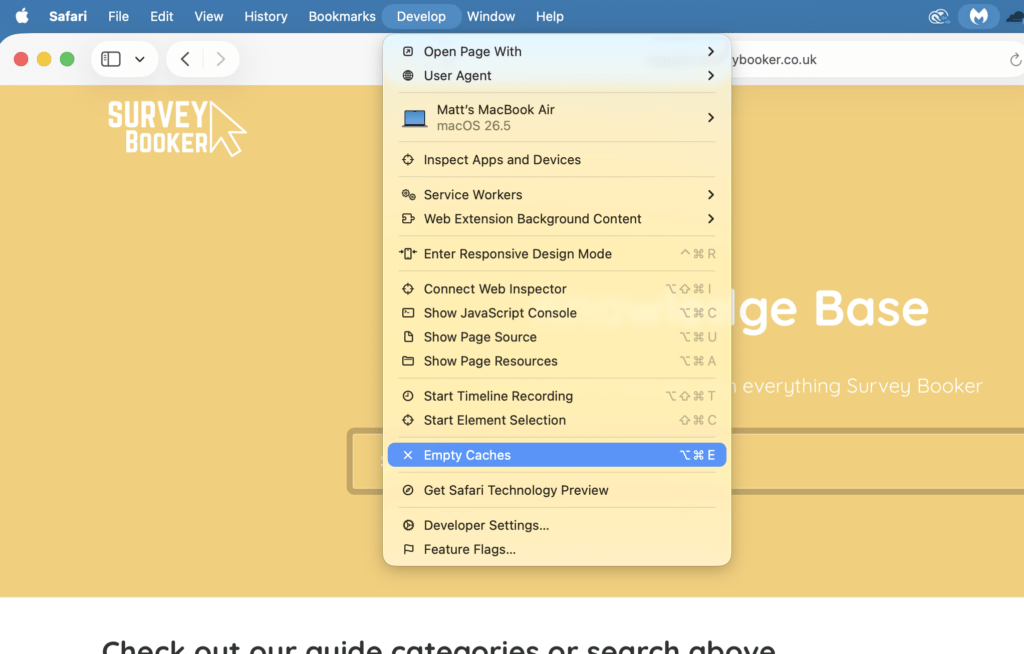
- Go to Develop in the top menu and click Empty Caches
- Reload the page