
Part 3 - Sending out general (non e-signed) terms of engagement
General terms simply allow a customer to view your terms by job type, and tick to agree. There is no formal signing process or final document. The customer can view the terms in the portal and tick to agree to them and/or be sent the terms via a link in the email directly to view. To send terms for e-signature, please see our e-terms guides.
Sending terms
This feature requires the “Auto-terms” feature for ease of use.
Route 1: if the customer books via the customer portal, when they get to the terms page, they will be shown the terms template for that job. They can view the document as a clickable link or embedded on the page (only possible if the document/site you are linking to is allowed to be iframed. If you are unsure use the clickable link route).
Once the customer has ticked to agree to the terms, the terms status will move to “terms signed” and the activity log will show the user that changed the terms status and the link that was agreed to. We recommend using a unique link each time your terms change so you can evidence exactly what was agreed to by the customer unless the link you add can show a version history.
Route 2:
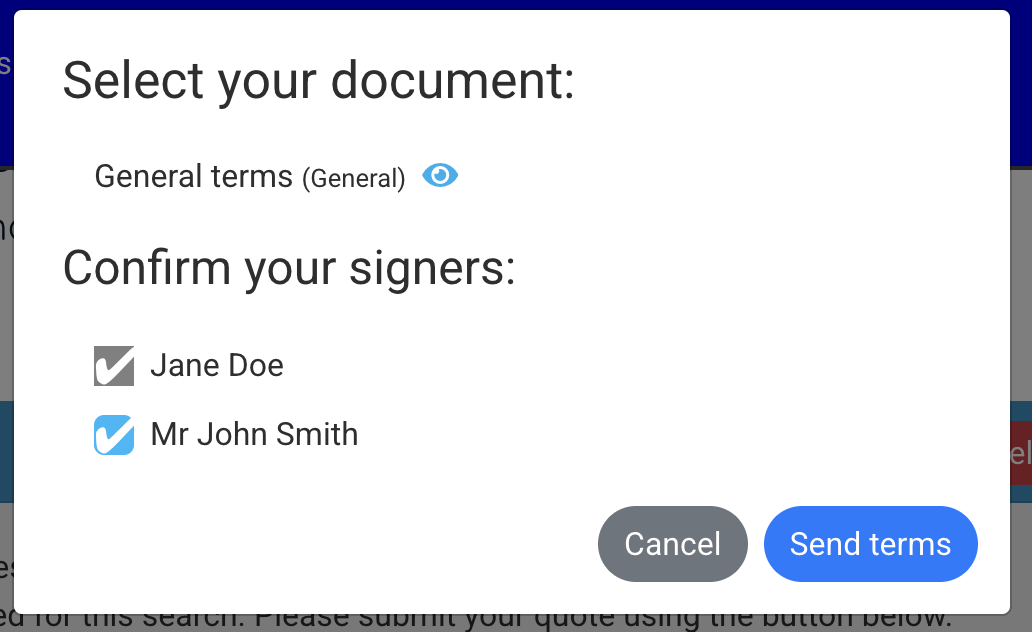
On the job record, press the “Send Terms” button. This will send an email to the primary customer using your “Please sign e-terms” template. The template can either share the activate customer account shortcode to prompt the customer to login or the terms document URL shortcode which will provide the terms with in the email. If the customer agrees in the portal, the terms status will update automatically. If the customer responds to the email template you can manually update the terms status.
Viewing terms in the customer portal
The terms can be presented as a clickable link or embedded into the page.
The video guide shows how both routes look.
The customer can then tick to agree to the terms at the bottom of the page, and then press “Continue to payment”
Activity log
The activity log will show which terms link the customer has agreed to.

Helpful questions
Can multiple parties view the terms?
The terms will be sent to the primary contact on the job record. Any contact on the job record can view the terms during the booking process. The primary customer is required to agree to the terms.
Can I have more than 1 template?
You can have one general terms document per job type. The general terms process works with displaying the terms in the portal during booking, meaning one template is allowed per job type, so that the system knows what it needs to display.
I have not received the terms email / my customer has not received the terms email
Please check our guide on email troubleshooting.
Can data populate the template?
No – to populate data into a template and request signature, please see our esignature terms process. The general terms method displays a standard template in the portal/emails out a standard link. This link can be to a document, webpage or other online source.
However, the please sign terms email can contain any job data you need (standard and custom fields) to create an order form within the template.
Can we automatically mark the terms as signed if the customer doesn’t view via the portal?
Yes – if you have access to our Patch API, you can use this to mark the terms as signed automatically if they’re viewing and agreeing to your terms outside of the customer portal.
You can also manually mark is as signed by clicking on the terms status and changing it to signed.