
Personalising your own User Email and Push Notifications
These settings allow you to personalise the content that is sent to your users as the job progresses. Each template has default text, however, you can change it to suit the content that best suits your needs.
Personalising Your User Email Templates
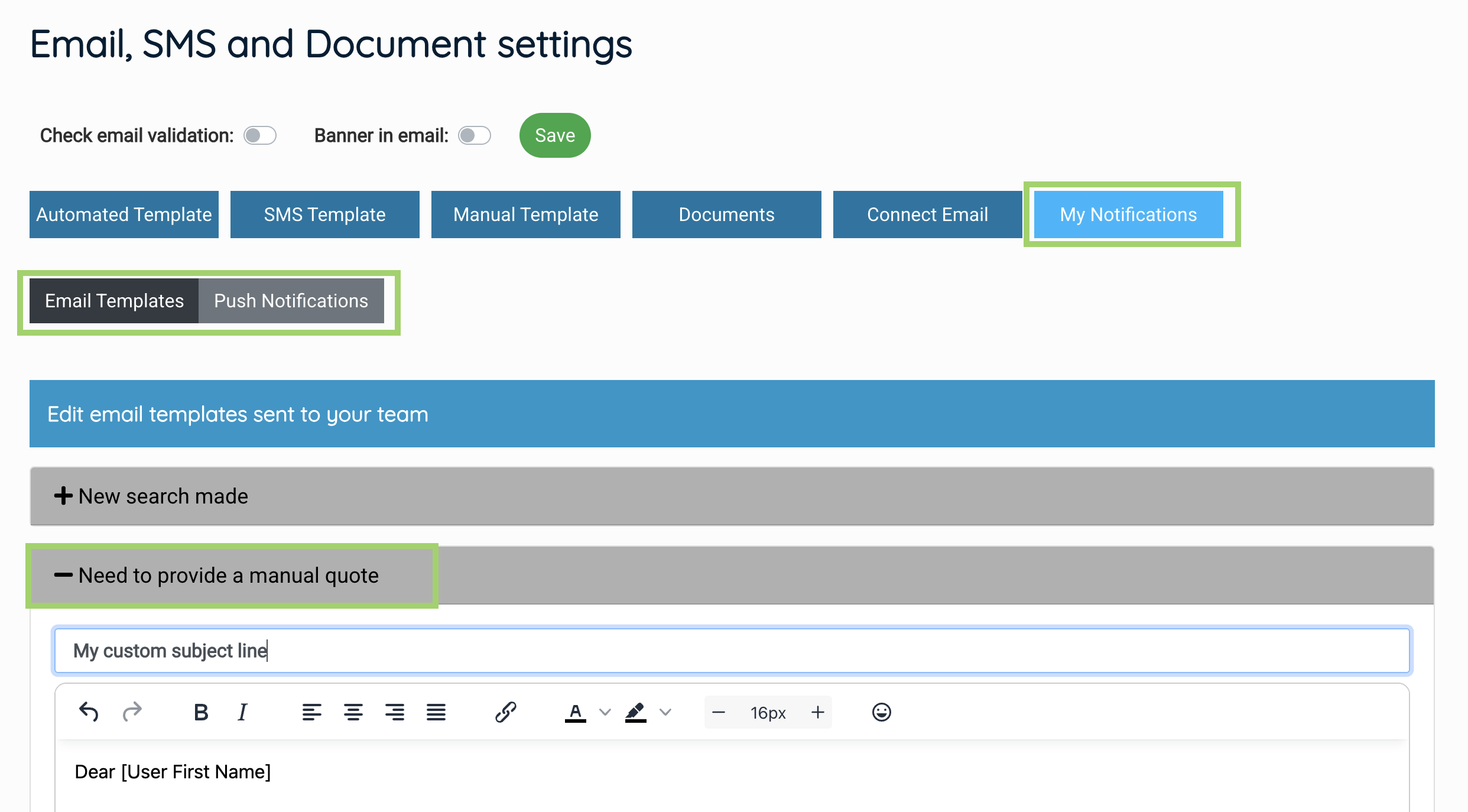
Navigate to Settings > Survey settings > Email and SMS settings > My notifications tab.
Here you’ll see all of the email and push templates that you can edit and adjust.
To turn a template off, this is managed in your Notification Preferences.
Personalising your template:
Click on the template you’d like to edit to expand it.
Click into the white text area that appears to expand the editor.
You can edit the subject line and body.
You can use the shortcodes that are listed on the “Automated templates” tab to add any extra content. E.g. you can add [Lead Source] to the new search alert subject line if that helps you decide which new enquiries to focus on first.
Once edited, press “Save”.
You can repeat this for your push notifications on the push notifications tab.