
Workflow - Event Automation Example: Set a team task when the last activity on a referrer record reaches a maximum age
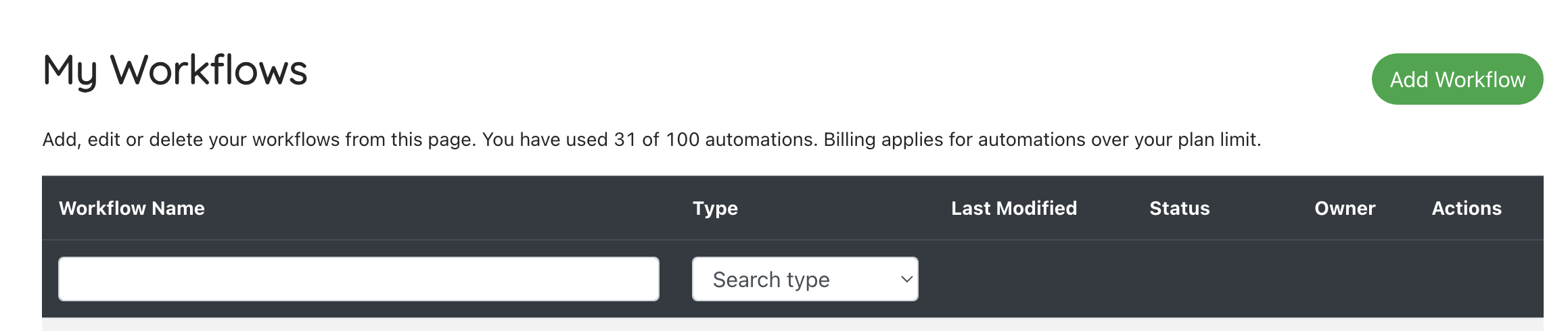
1. Click "Add Workflow"
Click “Add workflow”
Enter the name of the workflow so you can identify it later. E.g. “Check in with referral partner”
Select the type of task to run (Email, SMS, Task Note) – “Create task”
Press “Add Workflow”
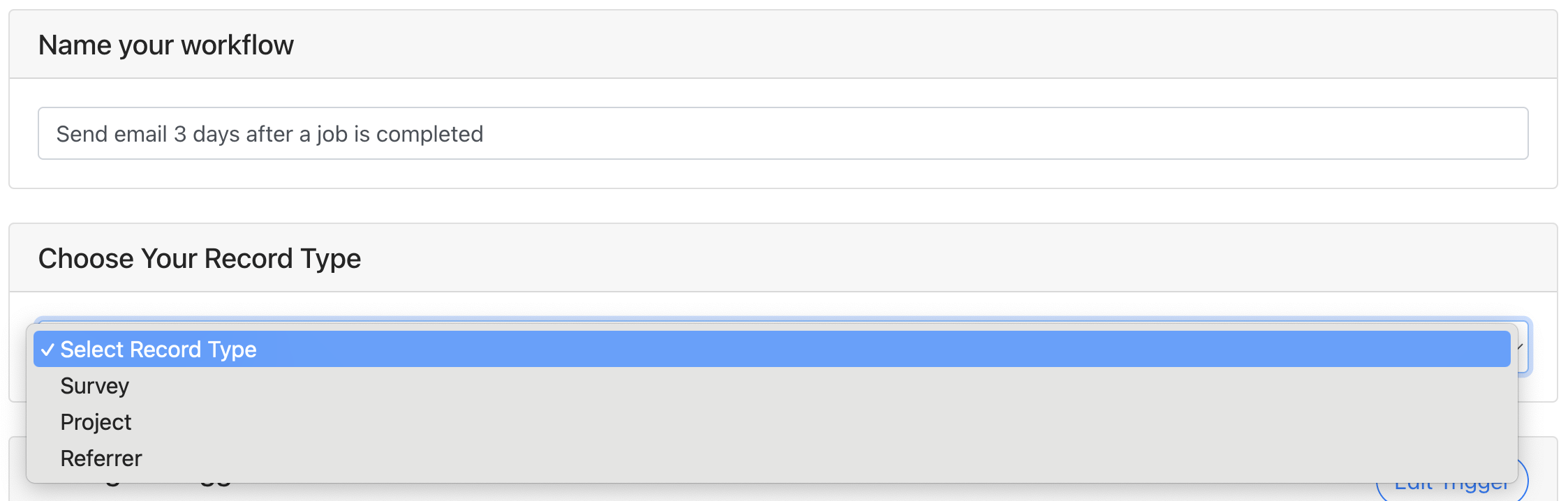
2. Choose The Record Type
Select “Referrer” from the dropdown list.
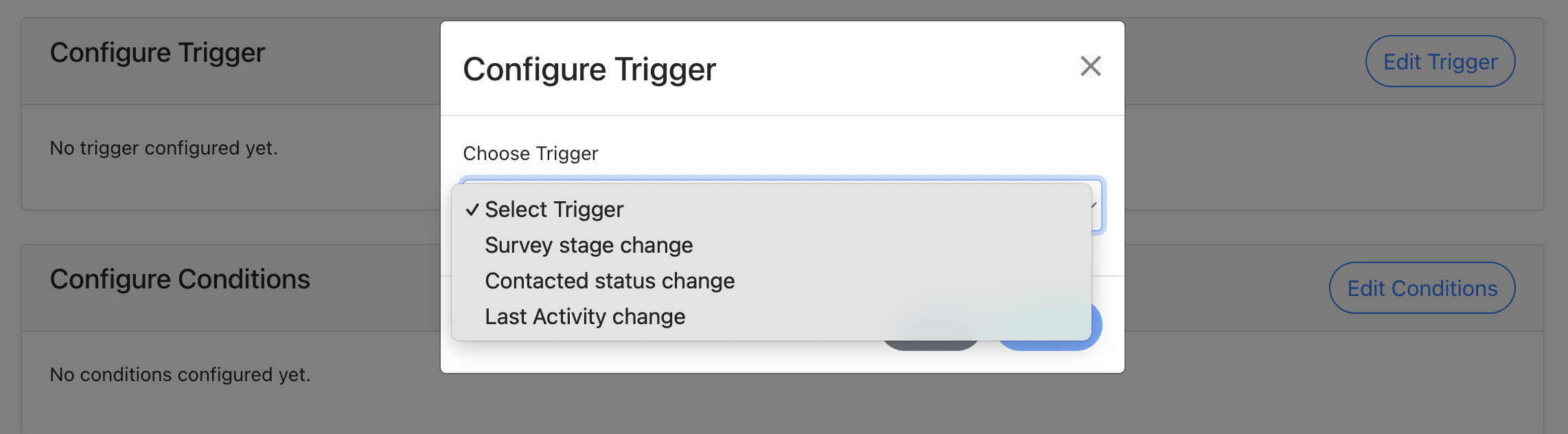
3. Configure Trigger
The trigger is the change in status for that record that should cause the workflow automation to run. These vary by record type. To create a lead nurture flow you can select:
- Last activity change
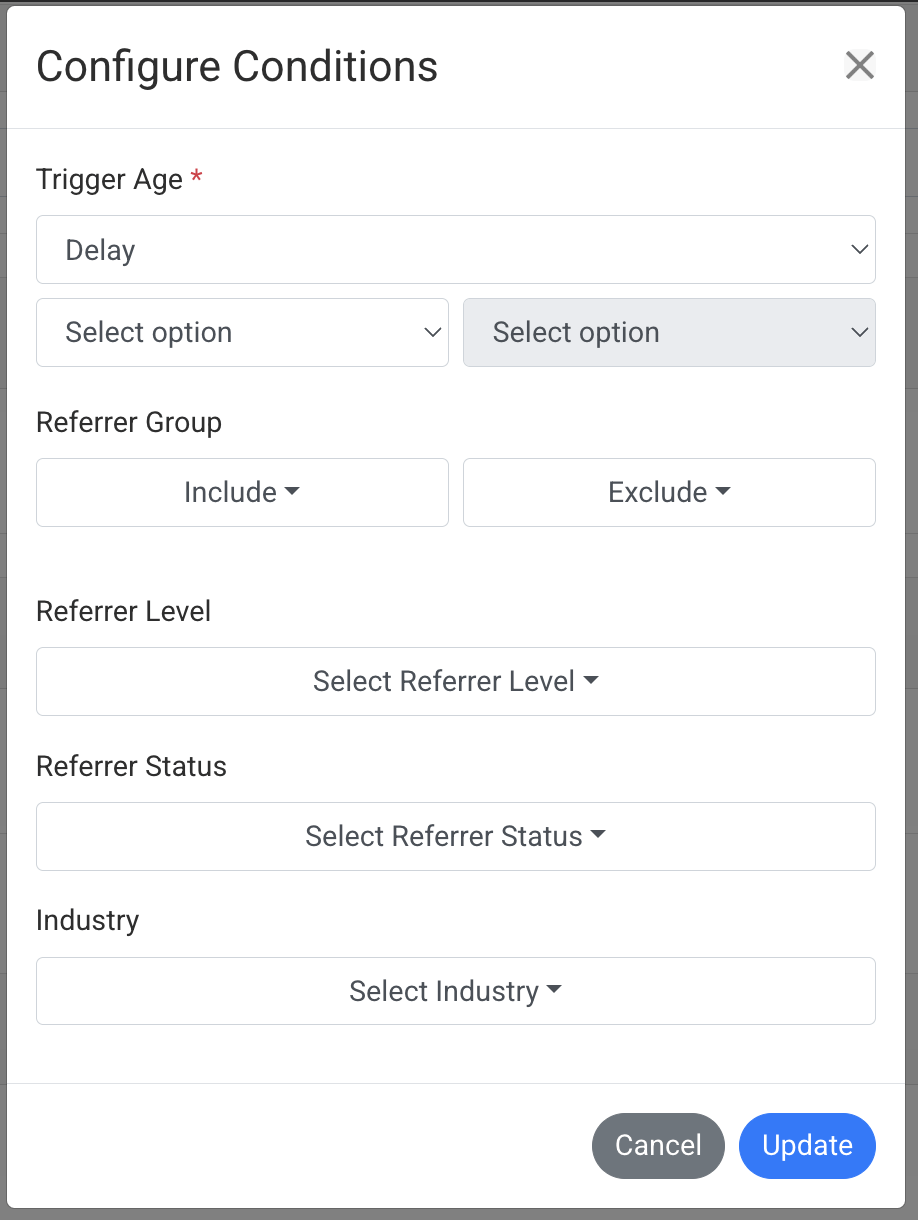
4. Configure Conditions
Key Conditions (this sets when and for which leads the workflow runs)
- Trigger Age: Delay – select how long since the last activity that the task should be created
- Level – do you follow up with all levels or just groups
- Status – do we run this only for referrers of all status or just key ones (e.g. Active and Live)
Conditions you can ignore:
- Source (optional) – choose if this should only run for key referral partners (leave blank to run for all)
- Industry
To understand what each condition controls, see our full guide here.
Important: Press Save Workflow before moving on to edit your Action. If editing and saving changes to your action before saving your workflow settings, the workflow settings will not be saved and will need to be re-entered
6. Configure Action
There are 4 types of action you can take once you have records that match your trigger and conditions. We’ll focus on emails for this example:
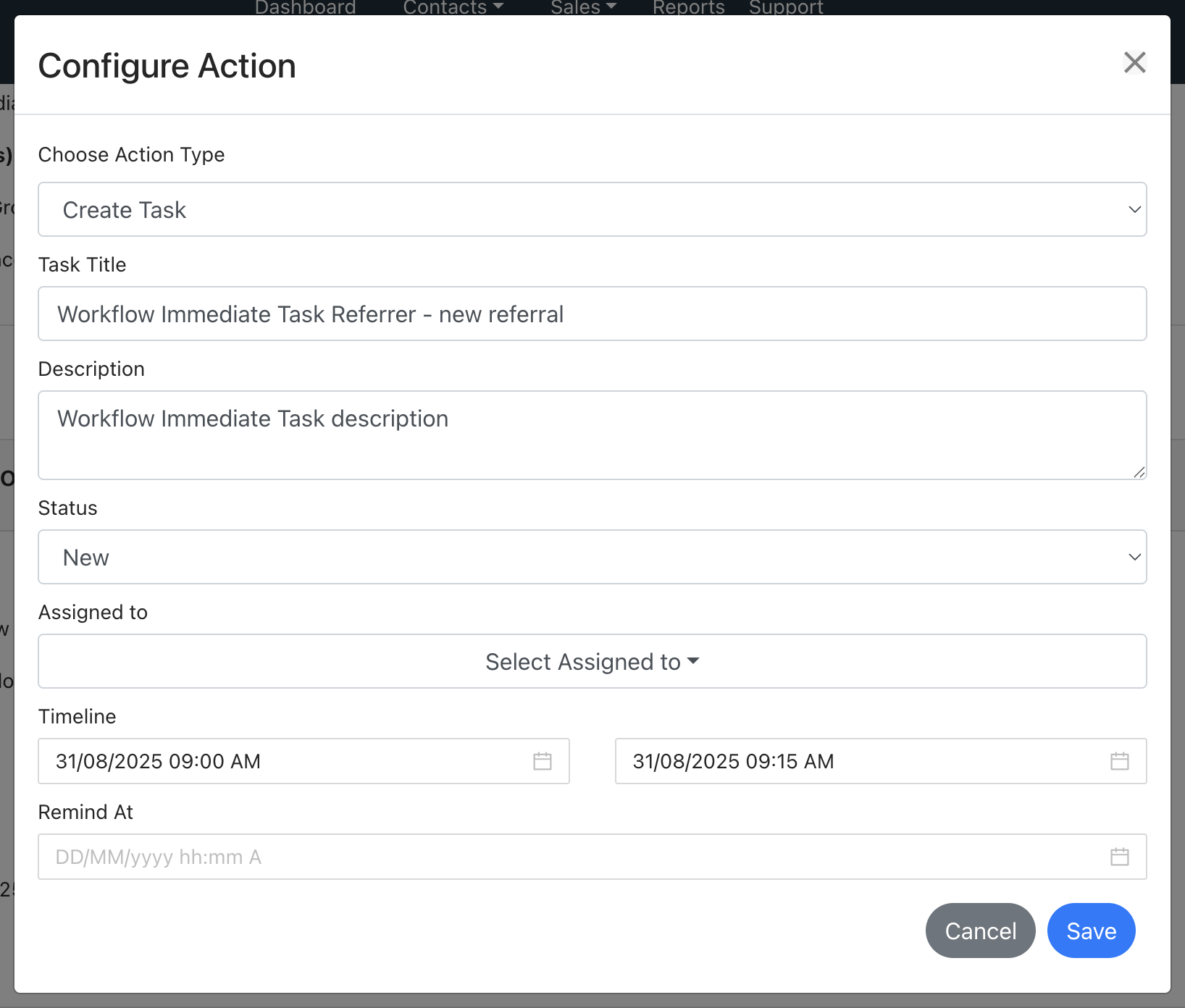
Create task
Task Title: Set the title of the task so users know what you want them to do for this task e.g. Follow up with referrer
Task Description: This can provide further details about the task requirements
Status: Choose the standard status (usually set as “New” ahead of the user starting it)
Assigned to:
- Choose Account manager to set the task for a referral partner account manager
Timeline:
- Set the number of hours or days from the task creation time that the date should be set
- Set the task length
- Set a number of days after the task start date the reminder should be
- Set no value for no reminder
- Set “0” for the reminder to be the task date
- Set “1”, “2”, etc for the number of days after the task date to have a reminder
Remind at: the same settings as above