

Workflow - Event Automation Example: Valuation Extension SMS
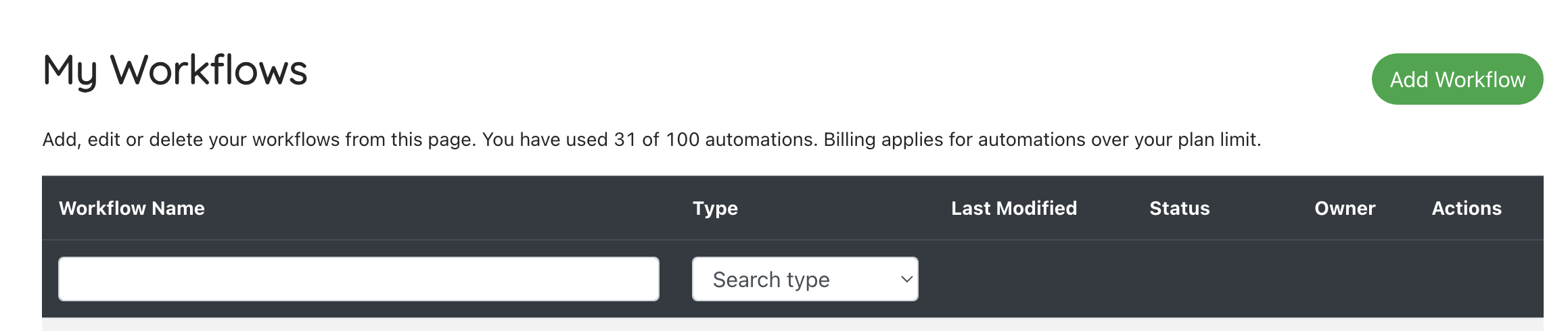
1. Click "Add Workflow"
Click “Add workflow”
Enter the name of the workflow so you can identify it later. E.g. “Prompt customer for valuation extension”
Select the type of task to run (Email, SMS, Task Note) – “Send SMS”
Press “Add Workflow”
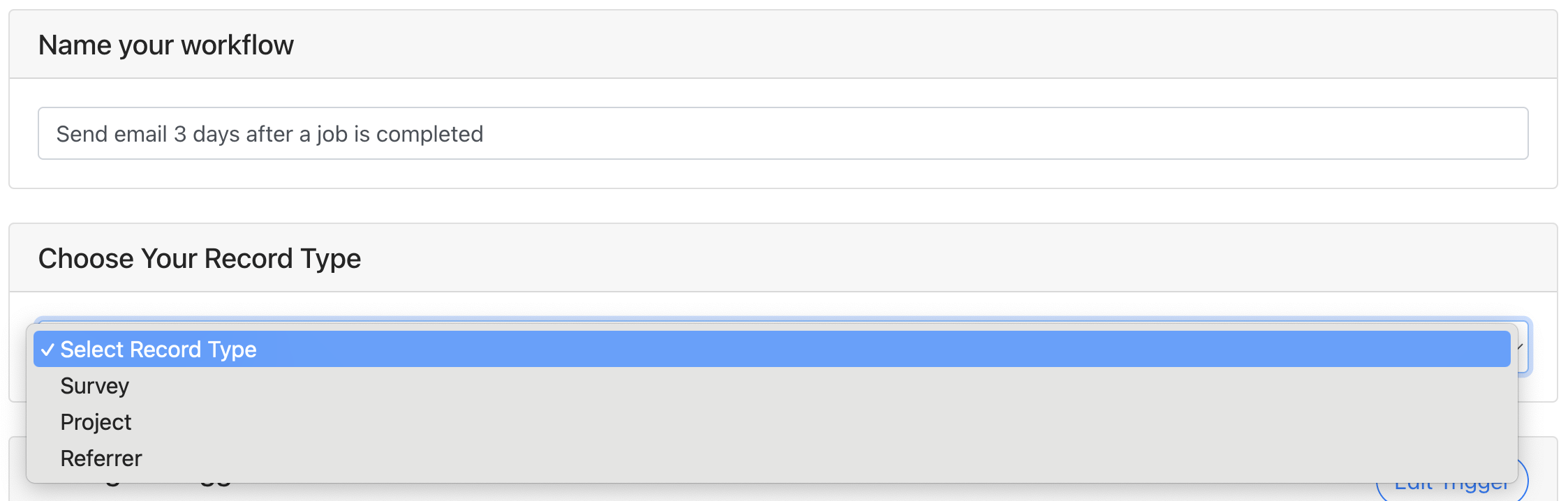
2. Choose The Record Type
Select “Survey” from the dropdown list.
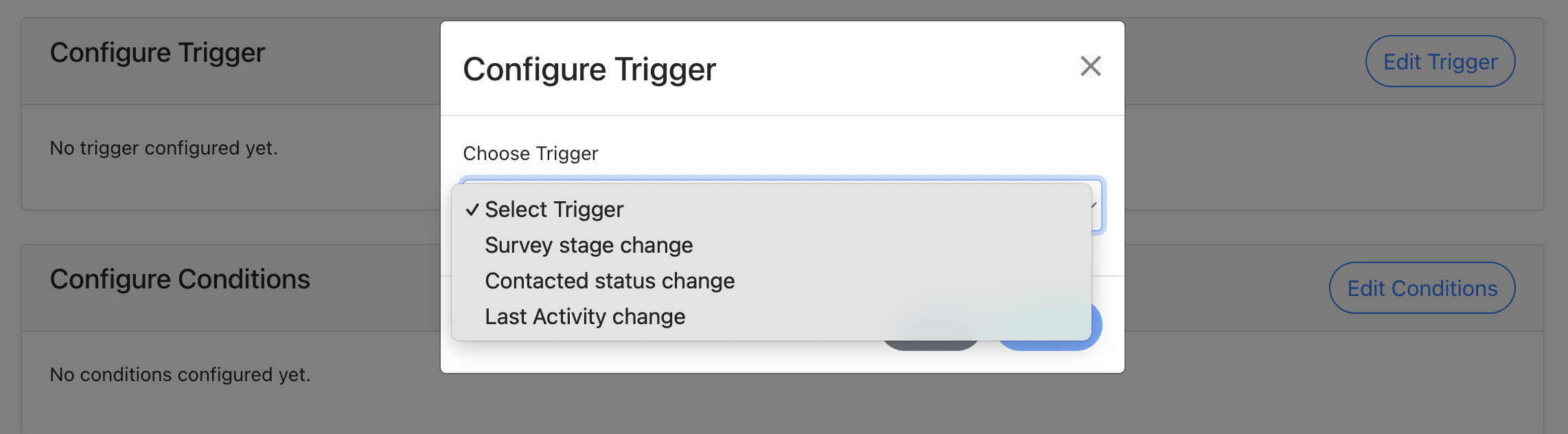
3. Configure Trigger
The trigger is the change in status for that record that should cause the workflow automation to run. These vary by record type. To create a lead nurture flow you can select:
- Survey stage change
- Select “Report” from the stage list
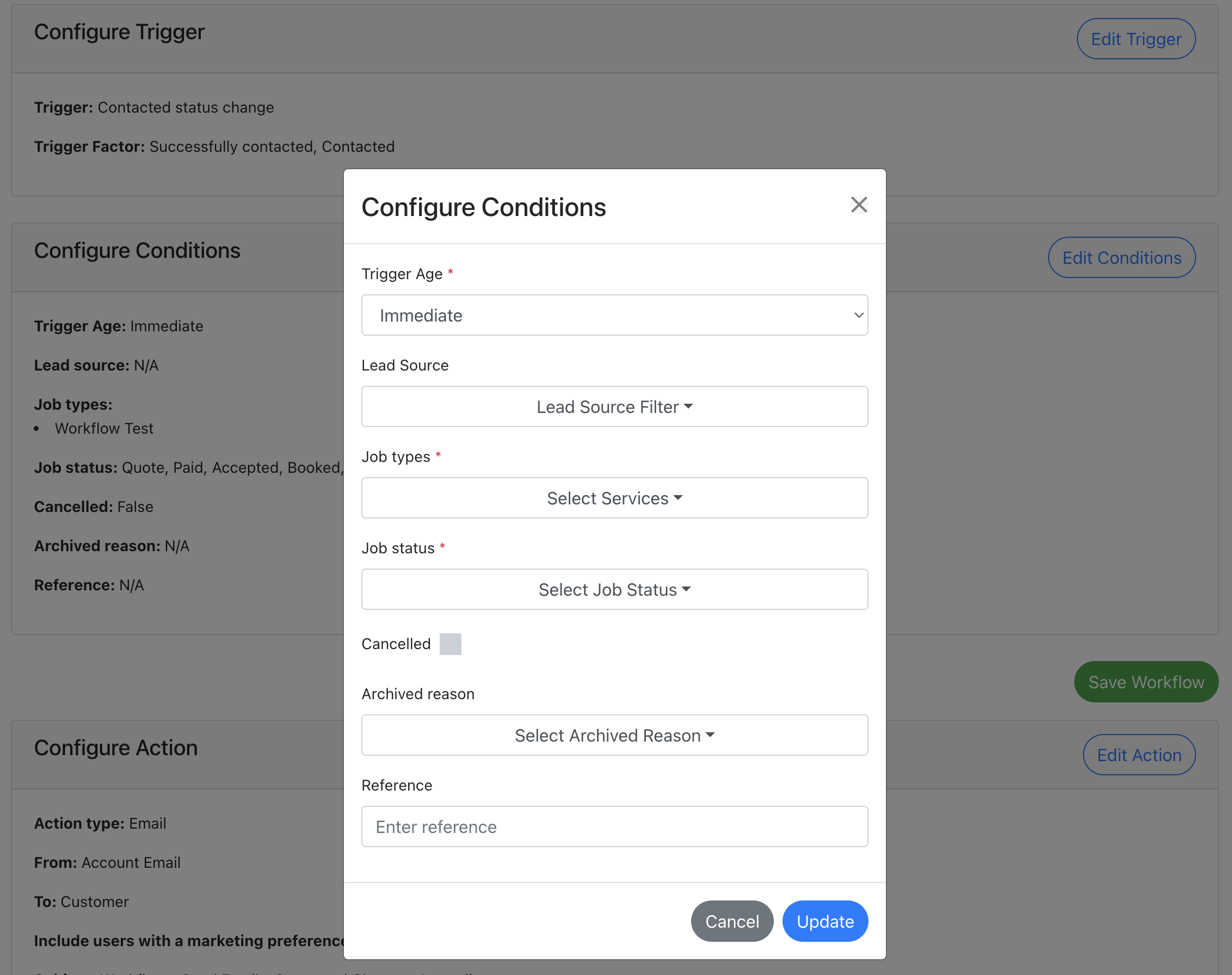
4. Configure Conditions
Key Conditions (this sets when and for which leads the workflow runs)
- Trigger Age: DELAY and choose either:
- Days – Choose up to 60 days after
- Report due date – set your own value e.g. “75” for how long after to follow up from the report due date
- Job types – select which job types this workflow should run for (e.g. Help to Buy Valuation)
Conditions you can ignore for this example:
- Lead source
- Only send if job is cancelled
- Reference
To understand what each condition controls, see our full guide here.
Important: Press Save Workflow before moving on to edit your Action. If editing and saving changes to your action before saving your workflow settings, the workflow settings will not be saved and will need to be re-entered
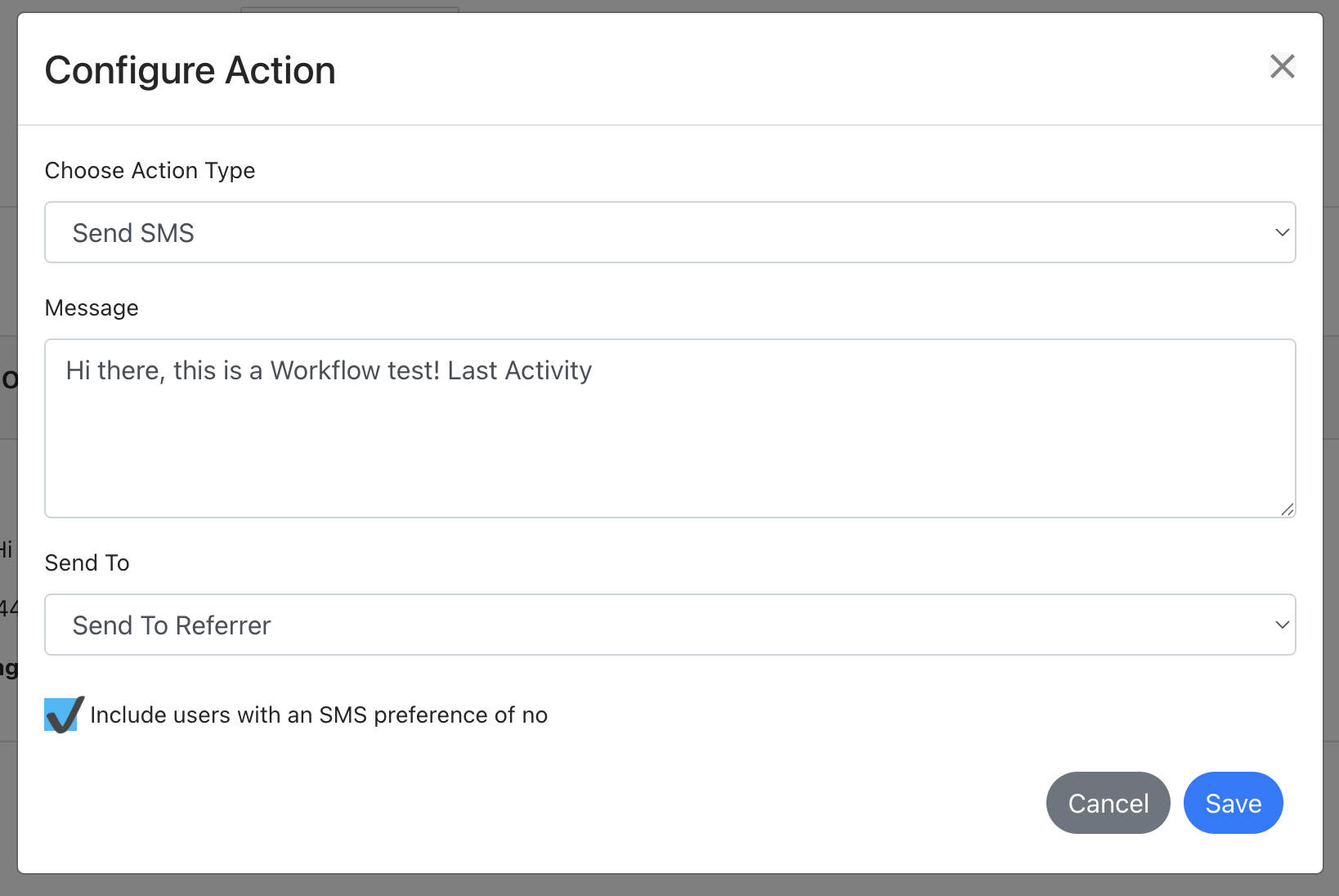
6. Configure Action
There are 4 types of action you can take once you have records that match your trigger and conditions. We’ll focus on emails for this example:
Send SMS (available when using the SMS integration)
Message text – enter the text that you want to include in the SMS. You can include shortcodes that are relevant to the workflow. E.g.:
“Hi [Customer First Name], your [Survey Type] will expire soon. Contact us today on [Account Phone Number] if you need to arrange a 3-month extension to your valuation”
Save in Message System – this will save the message sent in the message system to be viewed.
Send to: CUSTOMER
Duplicate the workflow and repeat!
You can easily set multiple SMS reminders to be sent out at 45 days, 60 days and longer.
To quickly, create a new SMS, go to the Workflows table, click the 3 vertical dots next to your workflow and press Duplicate.
The workflow will be a copy, and you can simply edit your trigger and SMS template.
Alternatives: you could set the action to be an email or a task for one of your team to contact the customer personally