
Providing statements to referral partners
This feature is designed to help you share updates with referral partners around fees due and general updates on leads that have been provided. Referral partners simply log in, go to their statements tab and they can download the statements you’ve made available. Email templates are available to help you alert your partners that a new statement is available for download.
Setting up who can view statements and where to find them
Settings
Navigate to your referral partner settings (Referral partners > Settings button).
Open the settings group you wish to edit.
For each statement you can set which level can view them and if they are produced weekly or monthly.
Viewing statements
Navigate to your referral partner record.
Open the statements tab.
Here you can see a list of statements either weekly or monthly depending on your settings above.
Your referral partners will see the same statements list in their account.
What are the different statements?
Activity Statement
This includes all referrals made in the relevant period plus jobs that are in progress (terms signed date, completed date or the current status is paid, accepted, booked, preparing report).
This statement is designed to show what activity has taken place in the specified period and how they are progressing. Referral partners can use their referral table to view all leads at any time, with the activity statement providing a summary statement for that week/month.
Fee Statement
This is a simple statement designed to show which jobs have had referral fees paid within the timeframe (week/month). The activity statement can be used to see all leads referred and their current status.
Emails – see when the statement emails are sent.
Adding custom fields and setting statement colours
You can set if any custom timeline fields from your job records should appear in the statements for your referrers to view. This provides additional flexibility on the types of information your referrers can see.
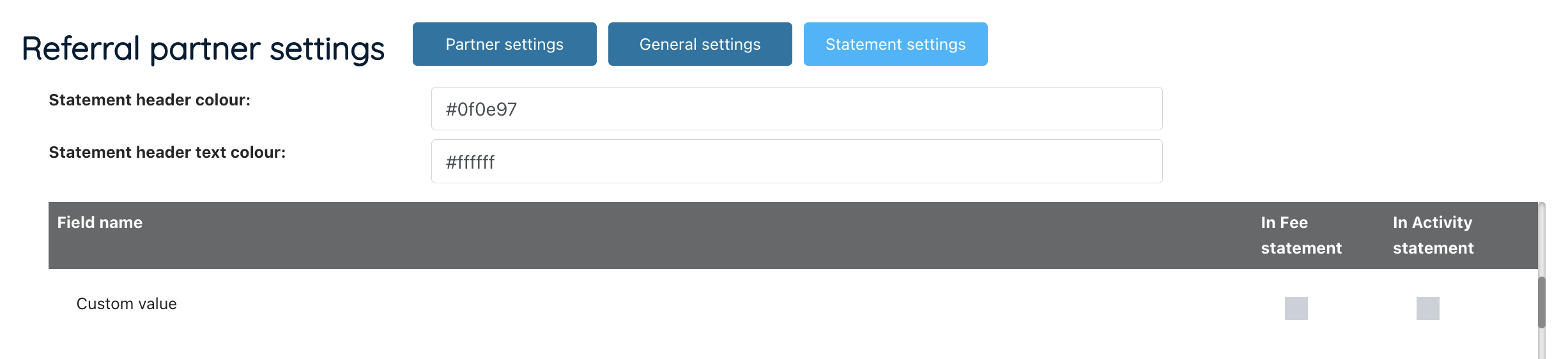
To add extra columns, navigate to your referral partner table > Settings > Statement settings. Here you can set your statement colours and tick which custom fields should appear in each statement type.
Uploading custom statements
What are custom statements for
Custom statements are great where:
- You don’t want to use our standard statements
- You want to upload remittance or credit notes for access
- You want to allow referral partners to upload a statement (e.g. an invoice for referral fees owed)
These allow you and your referral partner to view/download statements that suit your processes and they can be used alongside or instead of our existing statements.
Allowing referrers to upload a statement / activating custom statements
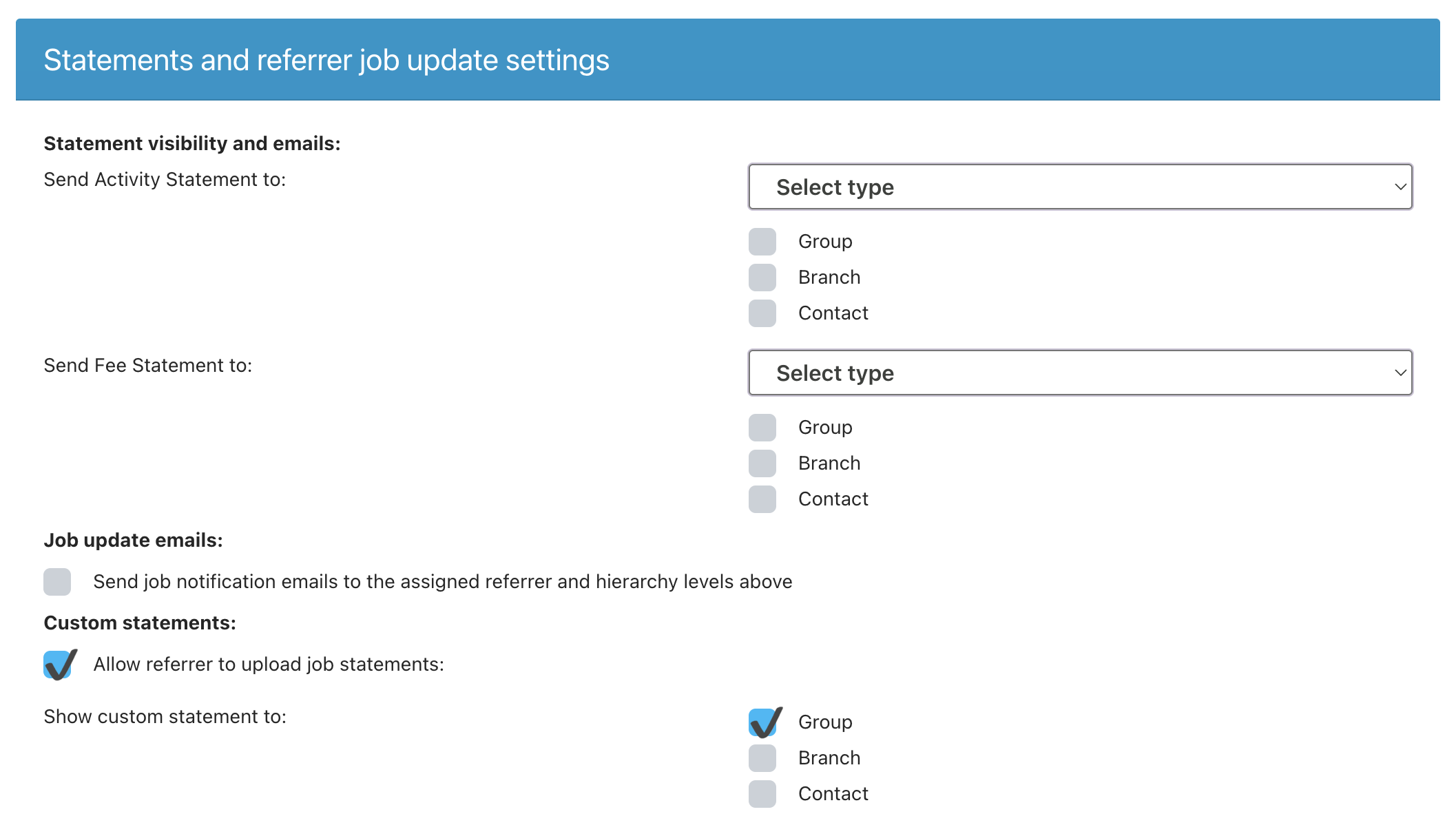
Open your referrer settings group (settings icon above your referrer table > partner settings tab
Scroll to the statements section (Referrer Plus)
Select “Allow referrer to upload job statements” if you want referrers to be able to upload statements or leave it unchecked if only you want control of this. If enabled, referrers can also upload statements in the same way as you can via their statements tab.
Select which levels the custom statements are relevant to (like the standard statements above).
Uploading a custom statement
Open the referrer record that you want to upload a statement to (they must be allowed to view statements on that record level / in the settings group they are assigned to for you to see the statements tab).
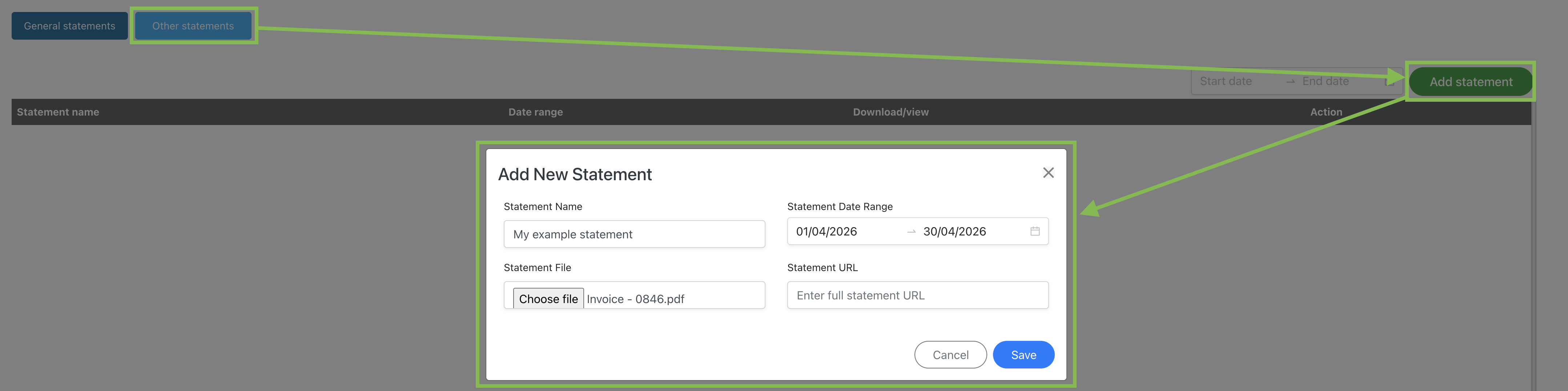
Click on “Other statements”
Click the “Add statement” button and fill in the details below:
- Statement Name – the name you want to give the statement so you and the referrer know what it relates to – e.g. April Remittance statement
- Statement Date Range – the date range that the statement refers to
- Statement File – the file to be uploaded; or
- Statement URL – the link to the file if an online document
Press ‘Save’.
The custom statement will then appear in the custom statement list for the relevant year and be visible to your referrer via their account.
Referrers can also upload a custom statement to you (e.g. an invoice) via their account if you allow this in the referrer settings group.
Custom statements can also be uploaded via API from finance systems.